

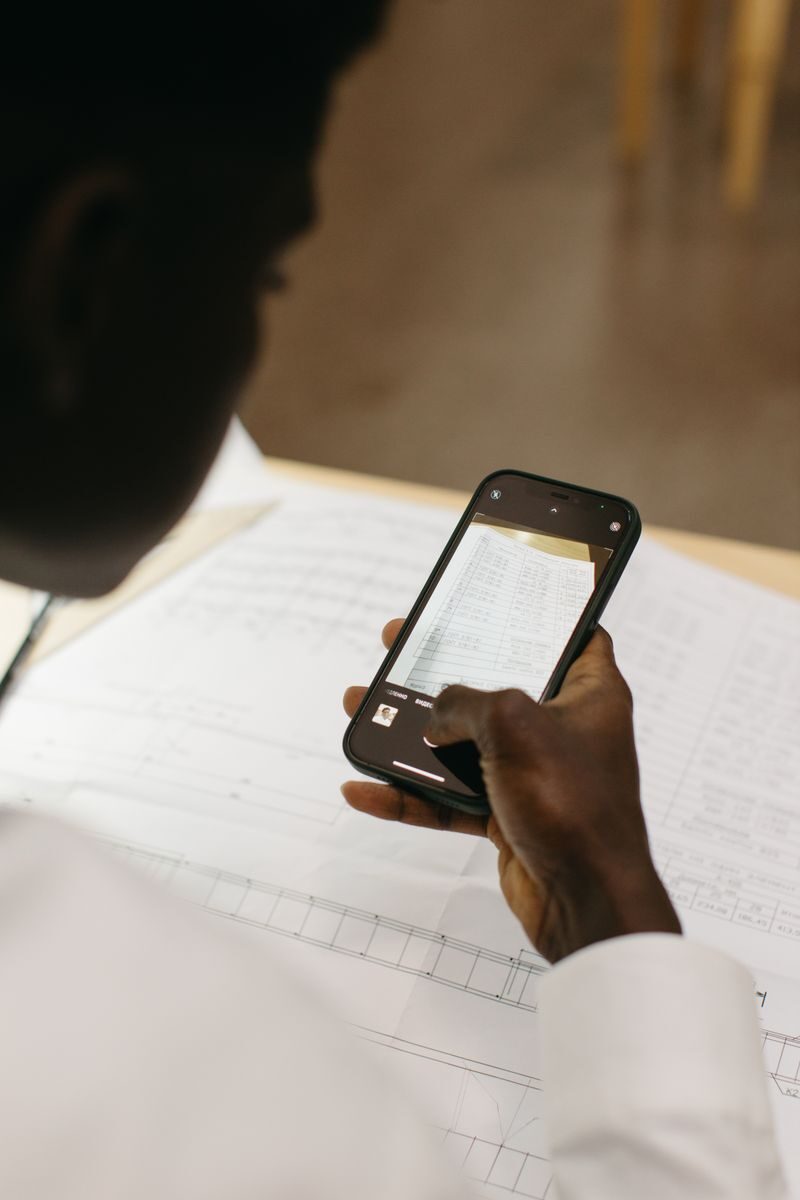
You can scan a document on an iPhone without downloading any app. Your iPhone already has a built-in scanner in the Notes app and in the Files app, and iOS 26 adds the Preview app, which handles PDFs as well. All three are free, and all three save your scans as PDFs you can share, print, or store.
This guide shows how to scan a document on iPhone three ways — Notes, Files, and Preview — plus one free third-party option for when you need text recognition. It also covers what to do after you scan, and how to fix the most common scanning problems.
Can You Scan A Document On iPhone Without An App?
Yes. If your iPhone runs a recent version of iOS, you already have everything you need. The Notes app has had a document scanner for years, the Files app can scan straight to a PDF in a folder, and the Preview app arrived on iPhone with iOS 26 for working with PDFs. You only need a third-party app if you want advanced features, such as turning a scan into editable text.
- Notes app: Best for quick scans you want to keep with a note.
- Files app: Best for saving a scan as a PDF in a specific folder.
- Preview app (iOS 26): Best for viewing, marking up, and signing scanned PDFs.
- Microsoft Lens (free): Best for text recognition and saving scans to OneDrive.
Method 1: Scan A Document With The Notes App
The Notes app is the fastest way to scan a document on an iPhone, because the scanner is built into every new note. Here is how it works:
- Open the Notes app and start a new note.
- Tap the attachment button (the paperclip) in the toolbar, then choose Scan Documents. On older versions of iOS, the same option is under the camera button.
- Point your iPhone camera at the document. The app will usually find the edges of the page by itself and take the scan automatically. If it does not, tap the shutter button to capture it manually.
- Drag the corners to adjust the edges if the scan is crooked, then tap Keep Scan.
- Scan more pages the same way if you need to — they are all added to the same note.
- Tap Save when you are done. The scans are stored inside the note as a PDF you can open, share, or print.
For the cleanest scan, put the document on a flat surface with good light, and place it on a dark background so the edges stand out. A white page on a white table is the hardest thing for the camera to find.
Method 2: Scan A Document With The Files App
The Files app is the better choice when you want the scan saved as a file in a folder, rather than inside a note. That makes it easy to find later, back up to iCloud, or attach to an email.
- Open the Files app and go to the folder where you want the scan saved — for example, iCloud Drive or On My iPhone.
- Tap the more button (three dots) at the top of the screen and choose Scan Documents.
- Point the camera at the document. The app will capture it automatically when it finds the edges, or tap the shutter button to take it yourself.
- Adjust the corners if needed, tap Keep Scan, and scan any extra pages.
- Tap Save. The scan is saved as a PDF in the folder you chose, ready to rename, move, or share.
The Files method is the one to use for paperwork you need to keep organized — tax forms, receipts, contracts, and school forms. Because the scan is a file, you can rename it right away, move it into the right folder, and find it with a search later.
Method 3: Scan With The Preview App (iOS 26)
With iOS 26, Apple brought the Preview app to iPhone. Preview is the app Mac users have relied on for years to open, mark up, and sign PDFs, and on iPhone it does the same job — including scanning. If your iPhone runs iOS 26, Preview is already installed.
Open the Preview app and tap the scan option, then point the camera at the document and capture it. The scan is added to your PDF library, where you can fill in a form, sign it with your finger, add a text box or a highlight, and share the finished PDF. Preview is the best option when the scan is a form you need to complete and send back, rather than a document you just need to store.
Notes Vs Files Vs Preview: Which Should You Use?
- Notes: Fastest. The scan lives inside a note. Best for receipts and quick reference.
- Files: Saves a PDF to a folder of your choice. Best for organizing paperwork and finding it later.
- Preview (iOS 26): Best for forms, signatures, and marking up PDFs.
- Microsoft Lens: Best for turning a scan into editable text and saving it to the cloud.
If you are not sure which to use, start with Notes for a one-off scan and Files for anything you need to keep. You can always open a saved PDF in Preview later to sign or mark it up.
One Third-Party Option: Microsoft Lens (Free)
If you need more than the built-in tools, Microsoft Lens is a solid free option. It scans documents, whiteboards, and business cards, cleans up the image, and can read the text in the scan (OCR) so you can search it or copy it into a Word document. It saves to OneDrive, or to your iPhone as a PDF, Word, or PowerPoint file.
Download it from the App Store, point it at a document, choose the Document mode, and tap the shutter. It is the best free choice when you regularly need editable text from a scan, not just a picture of a page.
Tips For A Clean Scan Every Time
- Use good light. Natural daylight works best. Avoid shadows across the page.
- Use a flat surface. A table or desk beats a lap or a bed.
- Use a dark background. The camera finds the page edges much faster against a dark surface.
- Hold the phone parallel to the page. Tilted scans come out skewed and hard to read.
- Clean the camera lens. A smudged lens is the most common cause of blurry scans.
- Check before you save. Zoom in on the text and check the edges before you tap Save.
What To Do After You Scan
A scan is only useful if you can find it again. Rename the file right away — in Files, long-press the PDF and choose Rename; in Notes, give the note a clear title. Move it into the right folder, then share it from the share sheet: AirDrop, Mail, Messages, or Print are all one tap away. If the document needs a signature, open the PDF in Preview and use the Markup tools to sign it before you send it.
Troubleshooting: Common Scanning Problems
- The camera will not find the page: Improve the light, use a darker background, and hold the phone directly above the page.
- The scan is blurry: Clean the lens, hold still, and tap the screen to focus before capturing.
- The edges are wrong: Drag the corners to fix them manually, or turn off Auto mode and capture the page yourself.
- The scan saved in the wrong place: Notes scans live inside the note, and Files scans live in the folder you chose — check both.
- There is no scan option: Update iOS in Settings, then General, then Software Update. The scanner needs a recent version.
- Your iPhone is out of space: Scans need room to save. Our guides to freeing up storage on iPhone and clearing the app cache on iPhone will help you make room.
The Bottom Line On How To Scan A Document On iPhone
You do not need a scanner, and you do not need to download anything. The Notes app is the fastest way to scan a document on iPhone, the Files app is the best way to save it as an organized PDF, and the Preview app in iOS 26 is the best way to sign and mark up what you scanned. Keep the page flat, the light good, and the background dark, and your iPhone will do the rest.
Frequently Asked Questions
Where Do Scanned Documents Go On iPhone?
It depends on the app. In Notes, the scan is stored inside the note as a PDF. In Files, it is saved as a PDF in the folder you chose. In Preview, it is kept in the Preview library with your other PDFs.
Can I Scan Multiple Pages Into One PDF?
Yes. In both Notes and Files, keep scanning pages before you tap Save, and all the pages are combined into a single PDF.
Do I Need An App To Scan On iPhone?
No. Notes and Files have built-in scanners, and Preview comes with iOS 26. You only need a third-party app if you want features like text recognition.
How Do I Scan A Document And Email It?
Scan it in the Files app, then tap the share button on the saved PDF and choose Mail. The PDF is attached to a new email, ready to send.
Can I Scan A Document And Turn It Into Text?
Yes, in two ways. Notes has Live Text, which lets you copy text out of a scan. For full text recognition, Microsoft Lens can convert a scan into an editable Word document.
