

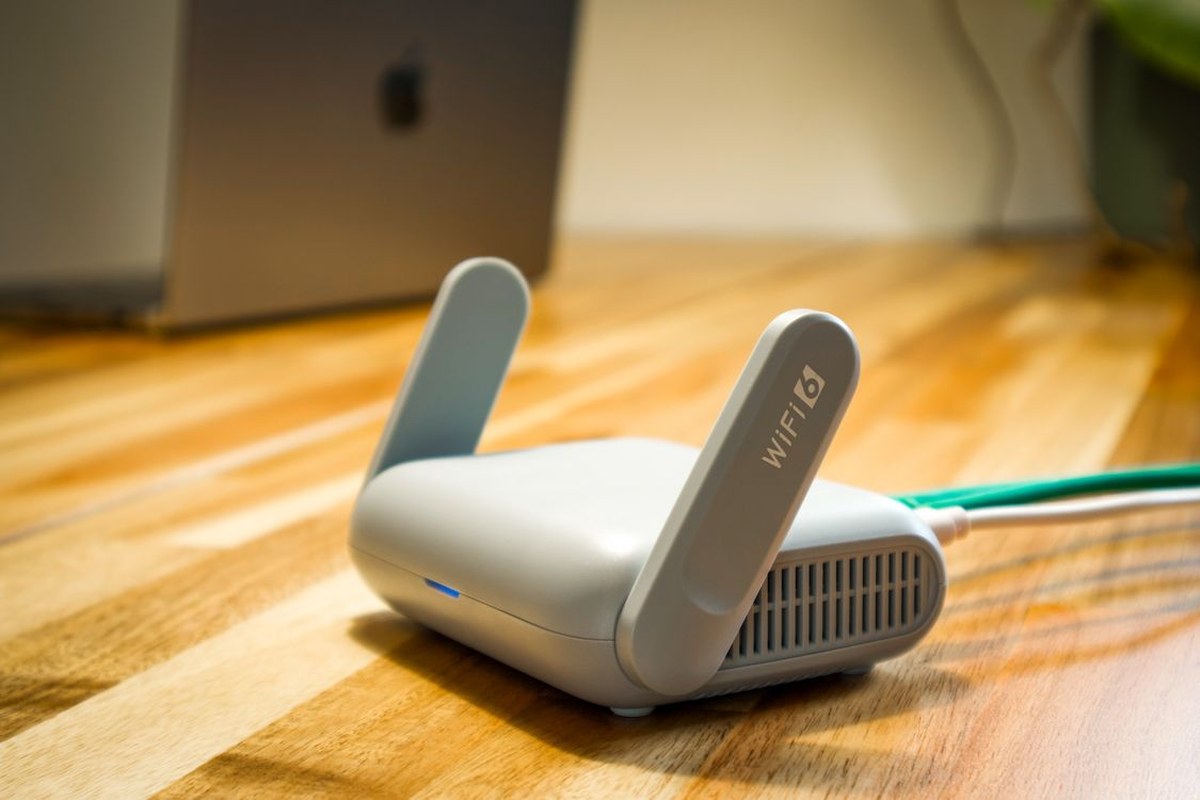
The strongest WiFi password is a long, random, and unique passphrase that only your household uses: at least 16 characters long, made of several unrelated words or a password-manager-generated string, set on a router using WPA3 or WPA2 with AES encryption, and stored in a password manager rather than written on a note near the router.
That answer is simpler than most advice online, and that is the point. You do not need a password that looks like a puzzle, and you do not need to change it every month for no reason. You need one long enough to resist guessing, random enough that no one can work it out from knowing you, and private enough that no one else already has it.
Key Takeaways
- Make your WiFi password long: at least 16 characters, and longer is stronger.
- Make it random: unrelated words or a generated string, never names, dates, or addresses.
- Make it unique: use it for your WiFi network only, never for an email, bank, or shopping account.
- Use WPA3 if your router and devices support it; otherwise use WPA2 with AES, never WEP, WPA, or TKIP.
- Store the password in a password manager, and change it only when you have a reason, such as a device you no longer trust.
What Makes A Wi-Fi Password Strong
Three qualities decide whether a WiFi password is strong: length, randomness, and uniqueness. Length decides how many guesses an attacker would need. Randomness decides whether those guesses can be shortened by knowing something about you. Uniqueness decides whether a leak somewhere else can open your home network.
The United States Cybersecurity and Infrastructure Security Agency (CISA) describes a strong password in exactly these three terms: long, random, and unique. Its guidance recommends at least 16 characters, either as a random string of mixed-case letters, numbers, and symbols, or as a passphrase of four to seven unrelated words. The National Institute of Standards and Technology (NIST), in SP 800-63B, sets a minimum of eight characters for passwords chosen by people, allows at least 64 characters, and discourages forcing particular character types, because forced complexity produces predictable passwords. See CISA’s guidance on strong passwords and NIST SP 800-63B.
How Long Should Your Wi-Fi Password Be
For a home WiFi password, 16 characters is a sensible floor, not a target to stop at. A passphrase of four or five unrelated words will usually pass 20 characters without any effort, and a password-manager-generated string can be longer still. Once the password is saved, going longer costs almost nothing, because you will rarely type it by hand.
Short passwords fail because the list of likely guesses is far smaller than people imagine. Passwords built from one dictionary word, a name, a year, or a keyboard pattern sit near the top of that list. Adding one exclamation mark or swapping one letter for a similar symbol does not help much, because guessing tools try those tricks first.
A Passphrase Or A Random String: Which Is Better
Both approaches work, and the best choice is the one you will actually use correctly. A passphrase is a sequence of unrelated words, such as a colour, an animal, and a household object with no connection to you. It is easier to read to a guest and type correctly the first time. A random string from a password manager needs no memory at all, because the manager stores it. For a WiFi password guests may need, a passphrase is usually friendlier.
Two warnings apply to both. First, never copy a passphrase example from an article or a friend: once published, it is no longer random, and anyone can add it to a guessing list. Second, never use a famous quote or song lyric, because published phrases are on guessing lists too. Random words that mean nothing together are the whole point.
WPA3 Vs. WPA2: Why Your Router Setting Matters
Your password does not protect your network on its own; the security protocol your router uses decides how that password is checked. WPA2 uses a pre-shared key: every device proves it knows the same password. Its weakness is that an attacker who captures a device joining the network can take that recording away and try passwords against it at their own pace, without talking to your router again.
WPA3, announced by the Wi-Fi Alliance in 2018, replaces that handshake with Simultaneous Authentication of Equals (SAE). Each password guess now requires a live exchange with the access point, so offline guessing from a captured handshake stops working. WPA3 also adds forward secrecy, so learning the password later does not unlock traffic recorded earlier. If your router and devices support WPA3-Personal, choose it; a WPA2/WPA3 transition mode covers older devices, though the network is then only as strong as its weakest accepted mode.
Avoid the older options: WEP and the original WPA are outdated, and within WPA2 choose AES rather than TKIP, an older method kept only for very old devices. If a device you genuinely still need can only connect with the older setting, replacing that device is worth considering.
Wi-Fi Passwords To Avoid
Some passwords are so common they should be treated as public knowledge. Avoid these, and avoid versions with a digit or symbol added at the end:
- Your network name, street name, house number, phone number, or family members’ or pets’ names.
- Single dictionary words, sports teams, birth years, anniversaries, or car models.
- Keyboard patterns, repeated numbers, or counting sequences.
- The password printed on your router’s sticker if you have never changed it, and any password you already use elsewhere.
- Short passwords under 12 characters, even for guests; a guest network with its own password solves that better.
How To Create The Strongest Wi-Fi Password
Start with a password manager. CISA recommends one because nobody can remember a long, random, unique password for every account, and a manager generates, stores, and fills in passwords while flagging weak or reused ones. With a manager, you only need to remember one strong master passphrase. Choose a reputable manager and protect it with multi-factor authentication where available.
- Generate a new password in your manager, or pick four to six unrelated words at random. Do not use words connected to you, your home, or your interests.
- Check the length: aim for at least 16 characters. Spaces between words are fine if your router accepts them; if not, join the words or use a generated string.
- Confirm it is unique: it must not match any password you use elsewhere, including an older WiFi password guests or former housemates may know.
- Save it in the manager before changing the router, so you cannot lock yourself out mid-change.
- Set up a separate guest network with its own password, so visitors stay off the network your personal devices use.
How To Change Your Wi-Fi Password On Your Router
Router menus differ by brand, but the pattern is the same. Connect a device to your network, open a browser, and sign in to the router’s settings page using the address and admin details printed on the sticker or in the manual. This admin login is separate from your WiFi password; if it is still a factory default, change it too.
In the wireless or WiFi security settings, enter the new password and set the mode to WPA3-Personal if available, or WPA2-Personal with AES if not. Save the change; your devices will disconnect, which is expected. Reconnect each device with the new password. If one refuses, check the password character by character and whether the device supports WPA3 before assuming it is broken.

Photo by Christina Morillo on Pexels.
Sharing Your Wi-Fi Password Safely
Guests need internet access, not access to your personal devices. A guest network gives them the first without the second: most modern routers offer one, with its own name and password. When guests leave, you can change the guest password without touching the main network.
Do not post the password where visitors can photograph it, leave it in a rental listing, or read it out on a phone call in a public place. When you must share it in person, read it once, let the guest’s device save it, and avoid repeating it in messages that stay searchable.
What Else Protects Your Home Network
A strong password is the largest single improvement, but it works best with a few other habits. Keep your router’s firmware updated, and turn on automatic updates if offered. Change the default network name if it reveals your name, address, or router model. Check the connected-devices list from time to time, and investigate any device you cannot recognise.
Your WiFi password protects your home network, not everything you do online. On a public network, a separate layer matters: our guide to VPN vs proxy differences explains what each tool encrypts and what neither can do. A VPN does not fix a weak WiFi password, and a strong WiFi password does not protect you on a café network. Strong, unique passwords for every important account still matter too, and our guide on how to prevent identity theft covers those habits, starting with securing your email account.
Photo by Laura Gigch on Pexels.
When Should You Change Your Wi-Fi Password
You do not need to change a strong WiFi password on a fixed schedule. NIST’s guidance discourages forced periodic changes unless there is evidence of compromise, because scheduled changes produce predictable variations. Change it when you have a reason: a housemate moves out, it was shared widely, a device you no longer trust had access, or someone outside the household may have it. When you do change it, generate a fresh password rather than adding a digit to the old one.
Conclusion
The strongest WiFi password is not a secret trick or the most complicated string you can invent. It is a long, random, unique passphrase, at least 16 characters, set on WPA3 or WPA2 with AES, saved in a password manager, and shared only through a guest network or sparingly with people you trust. Build it once, set it carefully, and leave it alone until you have a genuine reason to change it.
Frequently Asked Questions
What Is The Strongest Wi-Fi Password I Can Use?
A long, random, unique passphrase of at least 16 characters, ideally four or more unrelated words or a password-manager-generated string, used only for your WiFi network and set on WPA3 or WPA2 with AES.
Is WPA3 Better Than WPA2 For Home Wi-Fi?
Yes, where your router and devices support it. WPA3’s SAE handshake resists offline password guessing from a captured connection in a way WPA2’s pre-shared key does not, and it adds forward secrecy. If older devices cannot use WPA3, WPA2 with AES and a long password remains a solid choice.
How Often Should I Change My Wi-Fi Password?
Only when you have a reason, such as a housemate moving out, the password being shared widely, or a device you no longer trust having access. Fixed-schedule changes are not recommended, because they tend to produce small, predictable variations on the old password.
Can I Use The Same Password For Wi-Fi And Other Accounts?
No. Reusing a password means a breach anywhere else can expose your home network, and a leaked WiFi password can expose the accounts that share it. Keep your WiFi password unique to your network.
What Should I Do If A Device Will Not Connect After I Change The Password?
Re-enter the password carefully, checking capital letters and spaces, and confirm the device supports your router’s security mode. Older devices that do not support WPA3 may need WPA2/WPA3 transition mode, or WPA2 with AES, to connect.
Is A Guest Network Worth Setting Up?
Yes. A guest network gives visitors internet access without access to your personal devices, and its password can be changed freely without reconnecting everything in your home.
