

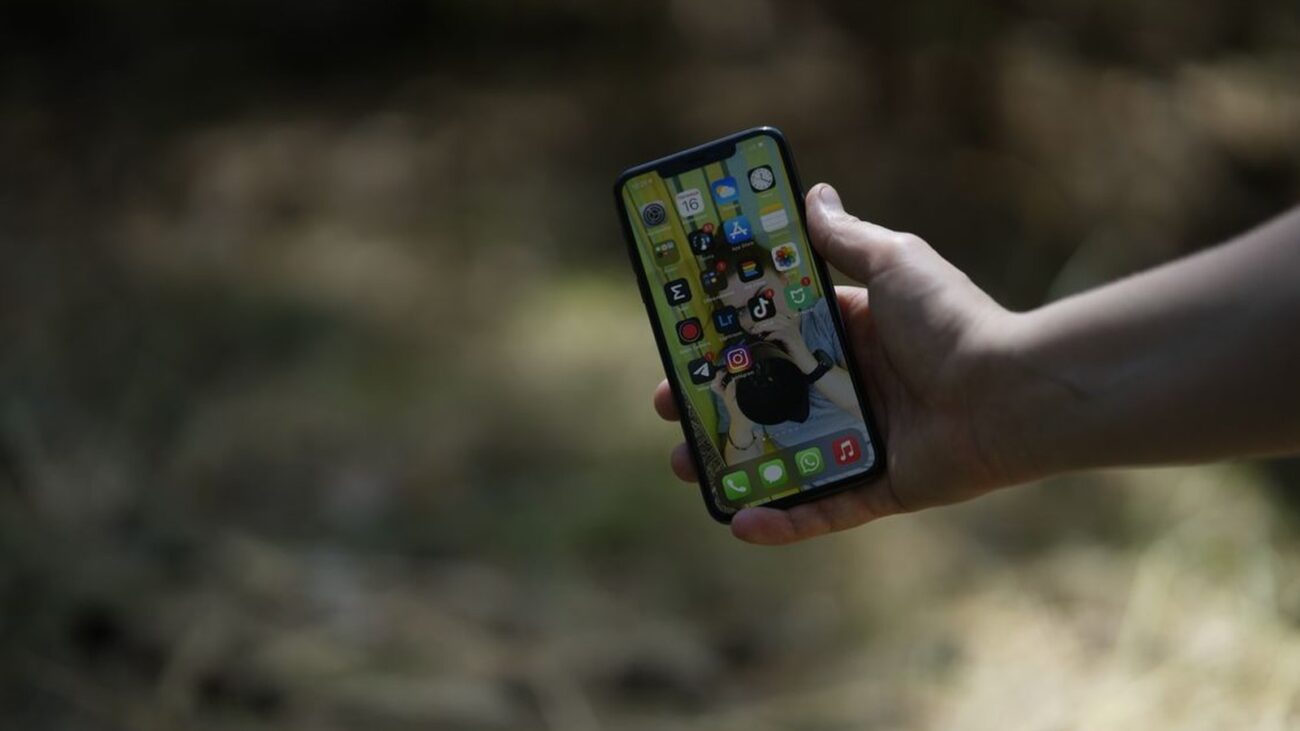
If you want to know how to reduce screen time without giving up your phone, start with small daily limits instead of a strict ban. Set a timer for the apps that eat your day, schedule quiet hours, turn off alerts you do not need, and give your hands something else to do. Together, those moves create a pause, protect your evenings, cut interruptions, and fill the gap scrolling used to fill.
This guide covers iPhone and Android settings, phone free zones, and a simple weekly check. Pick one or two changes first, live with them for a week, then add the next.
Why Screen Time Keeps Growing Without A Plan
Most extra screen time does not come from one long session. It comes from dozens of short checks: a notification here, a quick scroll there, one more video before bed. Each check feels harmless, so the total surprises people when they finally look at it.
That is why guessing rarely works. On iPhone, the Screen Time summary shows time by app and category, which apps send the most notifications, and how often you pick up your device. On Android, Digital Wellbeing shows screen time by app, how often apps are opened, and notifications received. Once you see your top apps, you know where a limit helps most.
How To Reduce Screen Time With App Limits And Timers
App limits are the most direct tool because they act at the moment you would normally keep scrolling. Start with the app or category that takes the most time.
On iPhone, Apple lets you set a limit for a category such as Social Networking or for individual apps:
- Open Settings and tap Screen Time.
- Tap App Limits, then tap Add Limit.
- Choose the category or the specific apps you want to limit.
- Tap Next and set the daily amount of time.
- Tap Add to save the limit.
You can also use Customize Days for a different weekend limit. Apple explains these options in its guide to Screen Time schedules and app limits.
On Android, app timers work in a similar way:
- Open Settings and tap Digital Wellbeing.
- Tap App timers.
- Tap Set timer next to the app you want to limit.
- Choose the daily time and tap OK.
Google notes that when the time runs out, the app closes and its icon dims, and timers reset at midnight. You can read the full steps in Google’s Digital Wellbeing guide.
A few practical tips make limits easier to keep:
- Set a limit you can meet on a normal day, then lower it gradually.
- Limit one heavy app first instead of capping every app on day one.
- Keep essential apps such as maps, banking, and family messaging outside the limit.
- Review the limit after a week and adjust it based on your report.

Schedule Downtime And Focus Hours Every Day
Limits control how long you use an app. Downtime controls when apps are available at all. A daily quiet window protects meals, work, study, and the hour before sleep.
On iPhone, Downtime blocks apps and notifications during the hours you choose, while calls, messages, and allowed apps stay available. You can turn it on until tomorrow or schedule it for every day or selected days. A reminder arrives five minutes before scheduled downtime begins.
On Android, Focus mode pauses the apps you choose, with no notifications from them while it is on. You can turn it on right away, set a schedule, or take a short timed break.
Good windows to try include:
- The first 30 minutes after you wake up.
- Lunch and dinner, so meals stay phone free.
- One focused work or study block in the afternoon.
- The last hour before bed.
Start with the bedtime window if you only choose one. It is the easiest to protect because it happens at the same time every day.
Cut Notifications Down To What Matters
Notifications decide when you look at your phone. If every app can interrupt you, your attention follows the loudest app instead of your own plan. Reducing alerts is often the fastest change to feel, because the phone asks for you less often.
Try this simple clean-up:
- Keep alerts for calls, messages from close contacts, calendar reminders, and anything tied to safety or work duties.
- Turn off promotional, social, and news alerts that do not need an instant response.
- Batch the rest by checking those apps at set times instead of reacting to each ping.
- Use your downtime or focus schedule to silence paused apps automatically.
Your weekly report helps here too. If one app sends most of your notifications, start with that app. Fewer interruptions also make limits easier to keep, because you open apps by choice rather than by reflex.
Make Your Phone Less Tempting To Open
Small display and layout changes add helpful friction. They will not replace limits, but they make a quick check feel less rewarding.
On Android, Bedtime mode can switch the screen to grayscale, keep the screen dark, dim the wallpaper, and use a dark theme at night. Grayscale changes the screen to black and white. Try it in the evening and notice whether colorful feeds hold your attention for as long.
Layout changes help during the day:
- Move distracting apps off the home screen into a folder on a later screen.
- Keep useful tools such as calendar, notes, and camera easy to reach.
- Remove shortcuts you tap without thinking, while keeping the apps for planned use.
- Put your phone face down or in a bag during conversations and meals.
The goal is one extra second of thought before an automatic scroll, not a phone that is hard to use for real tasks.
Create Phone Free Zones And Phone Free Times
Places and routines work when willpower runs low. A phone free zone removes the decision: the phone charges in one spot, and the room stays clear.
NIH MedlinePlus suggests designating spaces such as bedrooms or kitchens as screen-free, putting devices away during mealtimes, turning screens off at least an hour before bedtime, and charging devices outside the bedroom. The CDC gives a similar sleep habit in shorter form: turn off electronic devices at least 30 minutes before bedtime.
Simple zones and times to copy:
- Charge phones outside the bedroom overnight and use a basic alarm clock if needed.
- Keep phones in another room during meals.
- Make the first part of the morning screen free until after breakfast.
- Keep one chair, desk, or corner of the home for reading and work without a phone beside you.
If evenings are your weak spot, pair the zone with a wind-down routine. Our guide to good sleep hygiene covers the rest of the bedtime picture, including regular sleep times and a quiet, cool bedroom.
Replace Scrolling With Activities You Enjoy
Cutting screen time leaves empty minutes, and empty minutes invite the phone back. A replacement activity closes that gap. MedlinePlus makes the same point for families: replace screen time with sports, time outdoors, reading, board games, and creative hobbies.
Build a short list you can start in under a minute:
- Step outside for a short walk or stretch.
- Read a few pages of a book you keep nearby.
- Make tea or coffee and drink it away from a screen.
- Tidy one small area, water plants, or prep tomorrow’s bag.
- Call or message a friend with a real conversation instead of scrolling past updates.
- Practice a hobby that uses your hands, such as drawing, music, or cooking.
Keep the list visible on paper near your charging spot. When a timer ends or downtime begins, choose from the list instead of negotiating with yourself. Small swaps like these are also a practical way to work on how to improve yourself.
Track Your Usage And Adjust Once A Week
Habits stick when you can see progress. A five-minute weekly check is enough. Look at total screen time, top apps, pickups or unlocks, and notifications. Then ask three questions:
- Did my heaviest app go down, stay flat, or grow?
- Did my downtime window survive busy days, or did it slip?
- Which replacement activity did I actually enjoy?
Adjust one thing at a time. Lower a limit slightly, move downtime earlier, or silence one more app. If a limit failed every day, it was probably too strict, so set a realistic level and build from there.
Writing the target down helps. Browse these examples of personal goals and adapt one into a screen time target, such as keeping evenings phone free after dinner. Keep the target visible where you charge your phone.
Mistakes That Make Screen Time Creep Back
A few common mistakes undo good settings. Watch for these:
- Setting limits so low that you override them every day.
- Turning every notification back on after one busy afternoon.
- Keeping the phone beside the bed “just for the alarm” while still scrolling in bed.
- Cutting phone time but replacing it with the same feeds on a tablet or laptop.
- Judging the whole week by one bad day instead of the weekly trend.
Each mistake has a simple fix: raise the limit to a level you can keep, re-check notifications monthly, charge the phone outside the bedroom, apply the same downtime to other devices, and judge progress by the week.
Start With One Change Tonight
You do not need a perfect system to begin. Tonight, set one app timer, schedule downtime before bed, and charge your phone outside the bedroom. Tomorrow, silence the noisiest app. By the end of the week, check your report and adjust one setting.
This article offers general lifestyle information, not medical advice. The CDC advises talking to a healthcare provider if you regularly have problems sleeping. Small, steady changes beat short bursts of strict rules.
Frequently Asked Questions
How Much Screen Time Is Too Much Each Day?
There is no single daily number that fits every adult in the sources used for this guide. A practical test is displacement: screen time is too much when it regularly pushes out sleep, movement, work, or time with people. Lower the heaviest app first.
What Is The Fastest Way To Cut Screen Time Today?
Set one app timer for your heaviest app and schedule downtime for the last hour before bed. Those two settings take a few minutes, act automatically, and cover both daytime scrolling and late-night use.
Do App Limits Still Work If I Can Turn Them Off?
Yes, because the pause still interrupts automatic scrolling and makes you choose on purpose. If you override limits often, add friction: Google offers an App limits PIN, and iPhone Screen Time settings can be protected with a passcode.
Should I Charge My Phone Outside The Bedroom?
It helps protect the bedtime window. MedlinePlus suggests charging devices outside bedrooms and turning screens off at least an hour before bed, while the CDC lists turning devices off at least 30 minutes before bedtime. Start with 30 minutes if an hour feels hard.
How Long Does It Take To Build Lower Screen Time Habits?
It varies, so judge by weekly trends rather than a fixed number of days. Keep one or two changes for a week, check your report, then adjust. Steady weekly progress matters more than a perfect first week followed by a rebound.
