

Read receipts are the small signals that tell someone you have opened their message — the word “Read” under an iMessage, the two blue ticks on WhatsApp, or the “Seen” label on Instagram. Turning them off is simple, but every app hides the switch in a different place. On iPhone, go to Settings, then Apps, then Messages, and switch off Send Read Receipts. On Android, open Google Messages, tap your profile picture, go to Messages settings, then RCS chats, and switch off Send read receipts. On WhatsApp, open Settings, then Privacy, and switch off Read receipts. On Instagram, go to Settings and activity, then Messages and story replies, and switch off Show read receipts. Messenger’s steps and the group-chat exceptions are covered below.
Key Takeaways
- Every major messaging app has its own read receipts switch; changing one app changes nothing in the others.
- The setting usually works both ways: stop sending read receipts and you stop seeing other people’s too.
- Group chats are the big exception — WhatsApp and Instagram groups keep showing read status even with the setting off.
- Turning receipts off never stops delivery, and it never deletes anything already read.
- Typing indicators, online status and last seen have separate settings.
What Are Read Receipts?
A read receipt confirms that a message has been opened, not just delivered. On iPhone, the sender sees “Read” under their iMessage once you open it; before that, it says “Delivered.” On WhatsApp, one grey tick means sent, two grey ticks mean delivered, and two blue ticks mean read. On Instagram and Messenger, the sender sees “Seen” or their profile picture under the message. On Android, read receipts appear in RCS chats; plain SMS has none.
That pressure is why most people look for the off switch: once someone can see you read their message, a slow reply can feel like a statement, even when you were simply busy. Turning receipts off lets you read and answer when you are ready. It does not make you invisible, though — delivery confirmations, typing indicators and online status mostly stay active unless you change them too.
How To Turn Off Read Receipts On iPhone
Apple’s own support pages confirm the steps, and they work the same way on iPhone and iPad. The switch controls iMessage, Apple’s messaging service between Apple devices.
- Open the Settings app on your iPhone.
- Tap Apps, then tap Messages. On iOS 17 and earlier, Messages is directly in the main Settings list.
- Switch off Send Read Receipts.
From now on, people messaging you on iMessage will see “Delivered” instead of “Read.” Apple notes one catch: the main switch only affects conversations where you never set an individual override. If you once turned receipts on for a particular person, that setting stays on until you switch it off for that conversation too. Apple’s Support page for turning read receipts on or off has the same steps if your menu looks different.
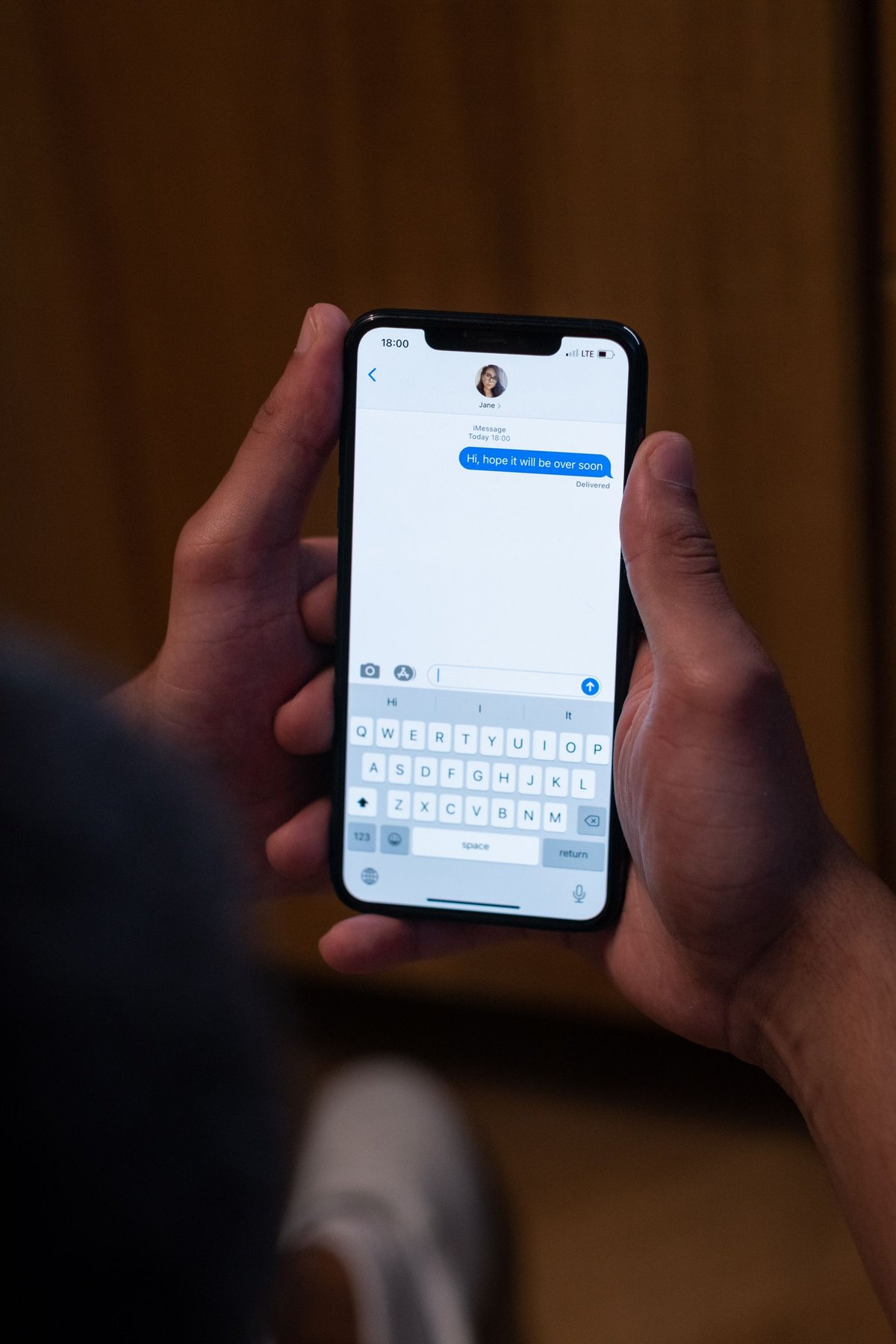
Photo by Ron Lach on Pexels
How To Turn Off Read Receipts For One Person On iPhone
Apple lets you set receipts per conversation, and the per-person setting overrides the general switch: open the conversation, tap the person’s name or number at the top, and switch off Send Read Receipts. Repeat the steps to switch it back on later.
Apple also states that you cannot turn on read receipts for anyone but yourself — to know when someone else reads your messages, ask them to turn theirs on. On a Mac, the same control sits in Messages under Messages, then Settings, then iMessage. And read receipts are an iMessage feature: Apple states they are not supported with SMS or group texts, so a green-bubble conversation never shows “Read.”
How To Turn Off Read Receipts On Android
On Android, read receipts are part of RCS, the modern messaging standard in Google Messages. They only work in RCS chats, where both people have RCS switched on; a plain SMS or MMS conversation has no read receipts to turn off.
- Open the Google Messages app.
- Tap your profile picture in the top-right corner.
- Tap Messages settings.
- Tap RCS chats. On some versions, the same screen is labelled Chat features.
- Switch off Send read receipts.
Typing indicators are a separate switch on the same screen, labelled Show typing indicators — turning off read receipts does not hide the typing dots, so change both if you want both gone. If you do not see RCS chats or Chat features, your phone, carrier or region may not support RCS, or your messaging app may not be Google Messages. Samsung’s newer phones use Google Messages for RCS; older Samsung Messages setups had their own toggles labelled Show when delivered or Show when read. For a broader tidy-up, our guide to freeing up storage on iPhone is a useful companion for iPhone owners.
How To Turn Off Read Receipts On WhatsApp
WhatsApp calls its read receipts the blue ticks, and the switch sits under Privacy. On iPhone: open WhatsApp, tap Settings, tap Privacy, and switch off Read receipts. On Android: open WhatsApp, tap the three-dot menu, tap Settings, tap Privacy, and switch off Read receipts.
The switch works both ways: once it is off, senders see only two grey ticks when you read their messages, but you also stop seeing blue ticks on messages you send. WhatsApp’s Help Center states this directly. The setting is not retroactive — messages you already opened keep their blue ticks.
Two exceptions matter. Read receipts are always sent in group chats, even when the setting is off. And turning off read receipts does not disable play receipts for voice messages — the blue microphone showing a voice message was played cannot be switched off. The WhatsApp Help Center page on read receipts explains the tick marks and the privacy setting in WhatsApp’s own words.
How To Turn Off Read Receipts On Facebook Messenger
Messenger is the one app here where the answer needs a little honesty. Meta introduced a read receipts control alongside default end-to-end encryption for personal chats. On current versions, open Messenger, tap the menu icon (three lines) at the top left, then the gear icon to open Settings. Tap Privacy & safety, then Read receipts, and switch it off.
Two cautions. Availability varies by app version and region, and Meta’s own help pages do not document a universal off switch for every chat — if you cannot find the setting, update the app first and trust your own settings screen. The switch is also tied to end-to-end encrypted personal chats; conversations that are not encrypted may keep showing “Seen.”
Do not mix this up with Active Status, a separate setting that shows whether you are online, with a green dot or an “Active now” label. Turning Active Status off hides when you are online, but it does not stop the “Seen” notice — check both settings if you want both kinds of privacy. For a wider look at how the apps on your phone work, our plain-English explainer on what AI stands for is a good starting point.
How To Turn Off Read Receipts On Instagram
Instagram added read receipt controls to direct messages in early 2024, for all chats at once or for one chat at a time. For all chats: open Instagram, tap your profile picture, tap the menu icon, then Settings and activity, then Messages and story replies, then Show read receipts, and switch it off. For one chat only: open the conversation, tap the person’s name at the top, tap Privacy & safety, and switch off Read receipts.
The per-chat choice overrides the account-wide setting for that conversation. The change is mutual, just like on WhatsApp: once receipts are off, you stop seeing “Seen” under your own sent messages too. It only applies going forward — messages already opened stay marked as seen, and nobody is notified that you changed the setting.
Two firm exceptions: group chats always show who has seen the latest messages, and vanish mode messages always send read receipts. Instagram’s Help Center also states that managing read receipts is not available on computers, so use the phone app if the setting is missing on the web.
Photo by cottonbro studio on Pexels
What Turning Off Read Receipts Does And Does Not Do
The setting is narrower than many people expect. Turning off read receipts stops other people seeing that you opened a message. It does not stop delivery — the sender still sees “Delivered” or two grey ticks. It does not hide the typing indicator, change your online status or last seen, delete messages, mute conversations, or block anyone. And it does not undo receipts already sent: if someone saw “Read” this morning, switching the setting off now will not remove it.
The change takes effect immediately, costs nothing, and is fully reversible — switch receipts back on at any time from the same menu. Just remember the mutual rule: if you rely on blue ticks or “Seen” labels to know an important message was read, you will lose that confirmation too.
Group Chats Are The Exception Everywhere
Group chats play by different rules in every app here. On WhatsApp, read receipts are always sent in groups. On Instagram, group chats always display who has seen the latest messages. On iPhone, Apple states that read receipts are not supported in group texts, so the group indicators cannot be managed with the same switch. Messenger’s control is likewise tied to personal chats. In short, turning off read receipts gives you privacy in one-to-one conversations, not in groups — to read a group message unseen, avoid opening the chat until you are ready.
The Privacy Trade-Offs To Think About
Turning off read receipts is a privacy win, but it is also a communication change. You get breathing room: read a message, think about it, and reply when you have something useful to say, without the sender watching a “Read” label sit unanswered.
On the other side, read receipts are a form of courtesy — a quick “Read” tells a friend their message landed and was seen. Turning them off can make you look distant to people used to the confirmation, especially in close relationships. A middle path works well: keep receipts on for a small circle of family and close friends, and switch them off for everyone else.
Troubleshooting: When Read Receipts Will Not Turn Off
Most problems have a simple explanation. If the setting is missing, update the app first: Instagram’s controls only exist in recent versions, and Messenger’s switch rolls out gradually by version and region. If you turned the main switch off on iPhone but one person still sees “Read,” check that conversation’s individual setting — Apple says the main switch does not override a per-contact setting you turned on earlier.
If WhatsApp still shows blue ticks, check whether you are looking at a group chat, where receipts are always sent, or a voice message, whose play receipts cannot be disabled. If Instagram still shows “Seen,” check for a group chat or a vanish mode thread, both of which ignore the setting. If a message still shows as read, remember the change is not retroactive. Finally, check you changed the setting in the right app — each app has its own switch. If your phone is slow while you dig through settings, our guide to what good internet speed looks like can help rule out a connection problem.
The Bottom Line On Turning Off Read Receipts
Turning off read receipts takes less than a minute in any app, but do it deliberately. Start with the app where the pressure bothers you most — for most people that is WhatsApp or iMessage. Remember the group-chat exceptions and that the change works both ways. Read receipts are useful, but they should serve you, not watch you.
Frequently Asked Questions
How do I turn off read receipts on my iPhone?
Open Settings, tap Apps, then Messages, and switch off Send Read Receipts. On iOS 17 and earlier, Messages is directly in the main Settings list. To change it for one person only, open the conversation in the Messages app, tap the person’s name at the top, and switch Send Read Receipts off there.
Does turning off read receipts on WhatsApp hide blue ticks?
Yes. Once you switch off Read receipts under Settings, then Privacy, senders will see only two grey ticks when you read their messages. The trade-off is that you will also stop seeing blue ticks on your own sent messages, and the setting does not apply to group chats or to voice message play receipts.
Can you turn off read receipts for one person only?
Yes, on iPhone and Instagram. On iPhone, open the conversation, tap the person’s name at the top and switch off Send Read Receipts for that chat. On Instagram, open the chat, tap the name, then Privacy and safety, and switch off Read receipts. WhatsApp does not offer a per-contact option — its switch applies to all one-to-one chats.
Why do read receipts still show in group chats after I turn them off?
Group chats are the exception in almost every app. WhatsApp states that read receipts are always sent for group chats, and Instagram group chats always display who has seen the latest messages. No setting in either app removes group read receipts.
Will the other person know I turned off read receipts?
No app in this guide sends a notification when you change the setting. The other person will simply stop seeing “Read,” blue ticks or “Seen” under their messages. They may notice the change over time, but they are not told about it.
Can I turn read receipts back on after turning them off?
Yes. The setting is fully reversible in every app covered here. Return to the same menu where you switched it off and switch it back on, and read receipts will start being sent again immediately.
Does turning off read receipts hide the typing indicator or my online status?
No. Typing indicators, online status and last seen are separate settings. On Android, the typing indicator has its own switch under RCS chats. On Messenger and Instagram, Active Status or activity status is controlled separately from read receipts.
